clapgeek logo

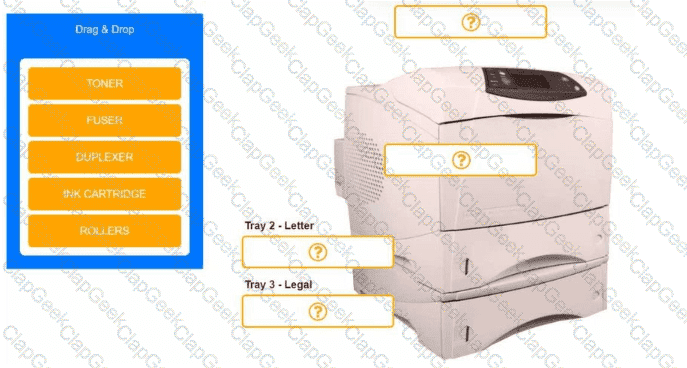
An office manager reports that a printer is experiencing performance issues. Printouts are smudging when they are handled, and, recently, whenever the manager tries to print oversized documents, the paper jams before anything is printed on it.
INSTRUCTIONS
Using the available printer parts, replace only the faulty components on the office printer to resolve the stated issues.
If at any time you would like to bring back the initial state of the simulation, please click the Reset All button.
Which of the following is a characteristic to consider when selecting a satellite internet connection?
A customer is able to print most documents with their USB inkjet printer, but the system is unresponsive when printing a certain report from a custom application. Nothing will print until the computer is restarted and the printer is power cycled. A technician remotes into the PC and confirms that the spooler stops working when this report is sent. After cleaning the spooler and reinstalling the drivers from the manufacturer ' s website, the issue persists. No other sites using the application report similar issues. Which of the following is most likely causing the issue?
Which of the following connections would be used to send a print job from a mobile device to a wireless multifunction printer (MFP)?
A specialist needs to configure a computer so that it will not boot up using any non-trusted or unsigned external devices that are connected to the computer. Which of the following should the specialist configure?
A technician needs to replace the connector on a data cable that uses two pairs of wires. Which of the following connectors should the technician use?
A company’s directory services server is located on premises. Which of the following best describes the directory services infrastructure?
After a data breach, an affected file server is reimaged and must have the data restored. The server array is configured as RAID 6. The technician restoring the data notices that the data transfer is sluggish and restarts the server. After restarting the server, the technician continues the restore process and sees one red LED in the drive array. Which of the following should the technician do next to remediate the issue?
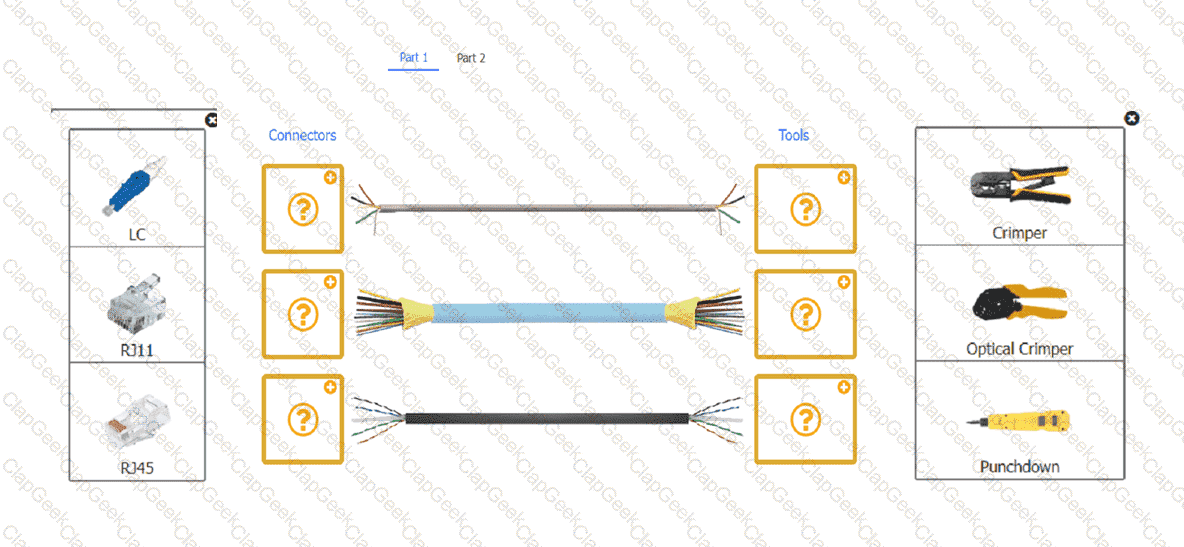
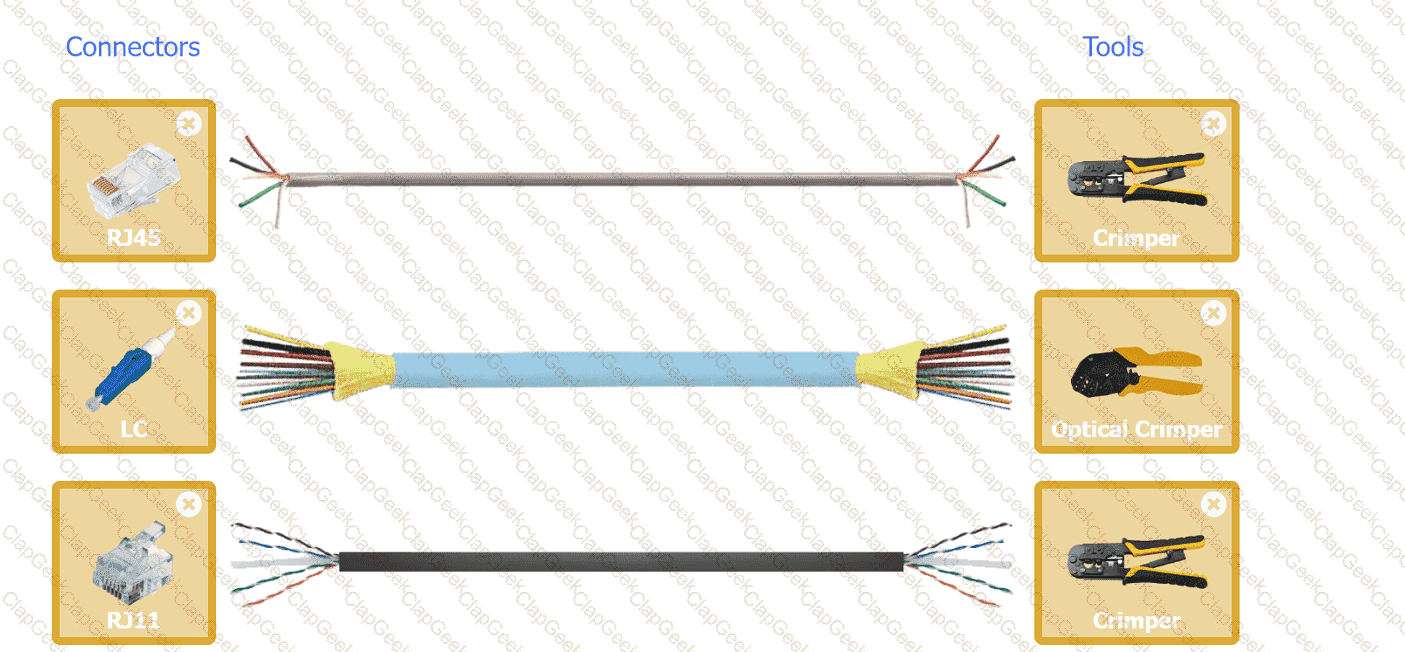
A technician is installing a wireless access point and is required to run all cabling and make patch cords if necessary.
INSTRUCTIONS
Part 1
For each cable type, click the (+) to select the appropriate connector and tool.
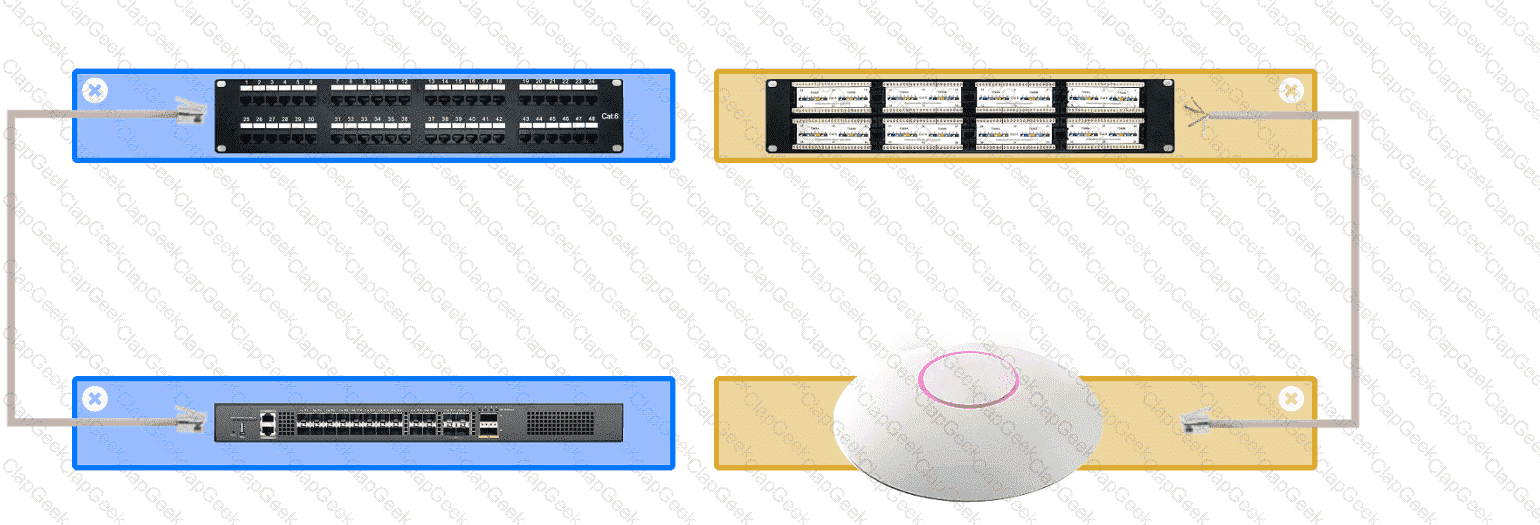
part 2
An access point was moved and no longer has connectivity. Connect the access point, patch panel, and switch by clicking the (+) to select the appropriate cable end for each corresponding location to create a link.
The link will be visible after making the second selection of each pair.
Cable ends may be used multiple times, and all placeholders will be filled.
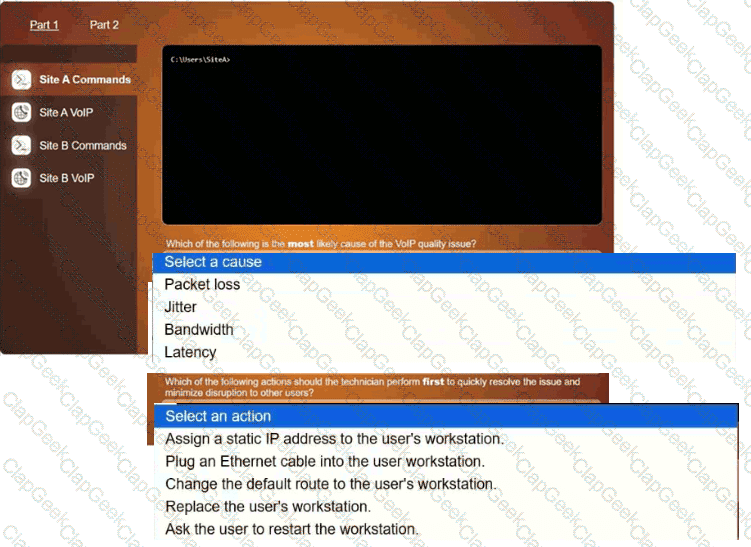
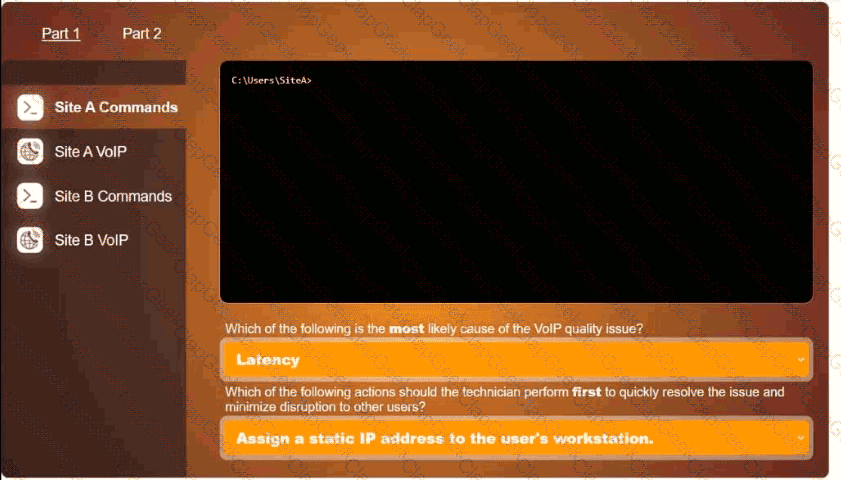
User at site A is reporting dropped VolP calls when using a softphone application.
However, users at site B are not experiencing any issues. The VolP provider has a tool to troubleshoot connectivity Issues.
Click on each tab to investigate the cause of the dropped calls. In Part 1, type help in each terminal to view a list of available commands. Then, select the correct answer for each question. In Part 2, make unnecessary network configuration changes to resolve
reported issue.
A company requires a storage solution that combines performance and redundancy for a main database server with high levels of read/write operations. Which of the following storage configurations best meets these requirements?
A company ' s directory services server is located on premises. Which of the following best describes the directory services infrastructure?
Which of the following can be used by a mobile device to access a secure building?
Which of the following storage devices is most suitable for quick data access and retrieval speeds on a laptop?
A company is separating its accounting department’s network from its customer service department’s network. Which of the following will accomplish this task?
Which of the following supports the most devices due to its status as a legacy technology?
Which of the following is used to prevent unwanted emails from reaching an inbox?
Employees report that a shared laser printer has difficulty printing on thick paper. A technician verifies that the printer works as expected on standard paper, but output on thick paper is easily smudged when touched. Which of the following should the technician do first?
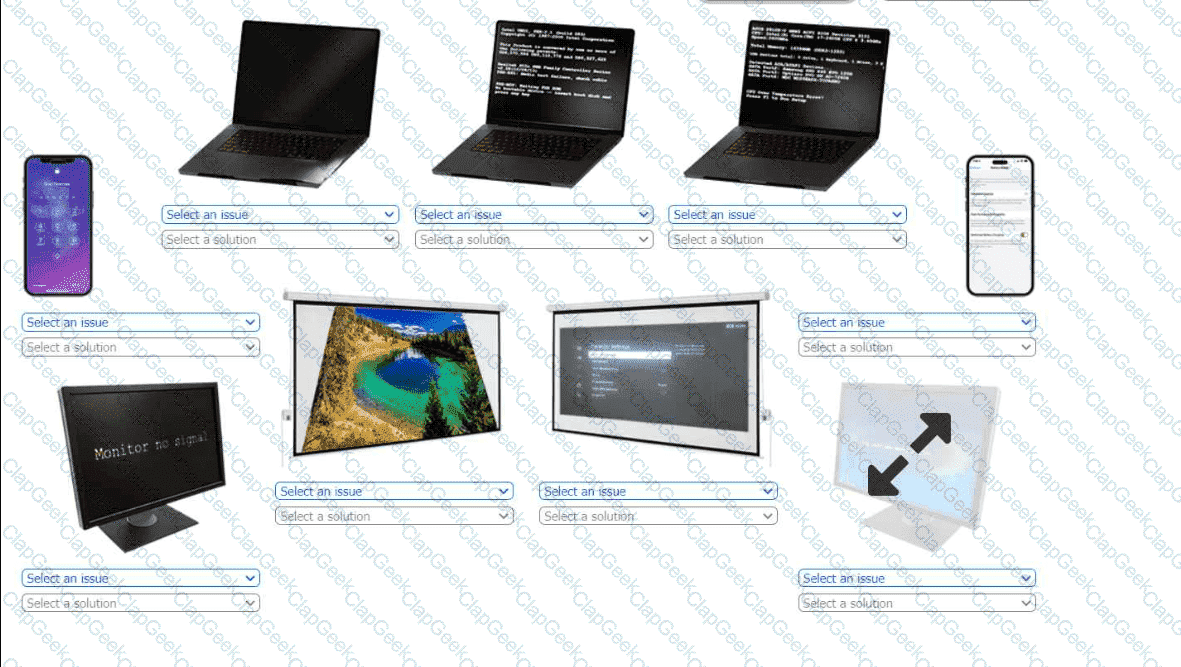
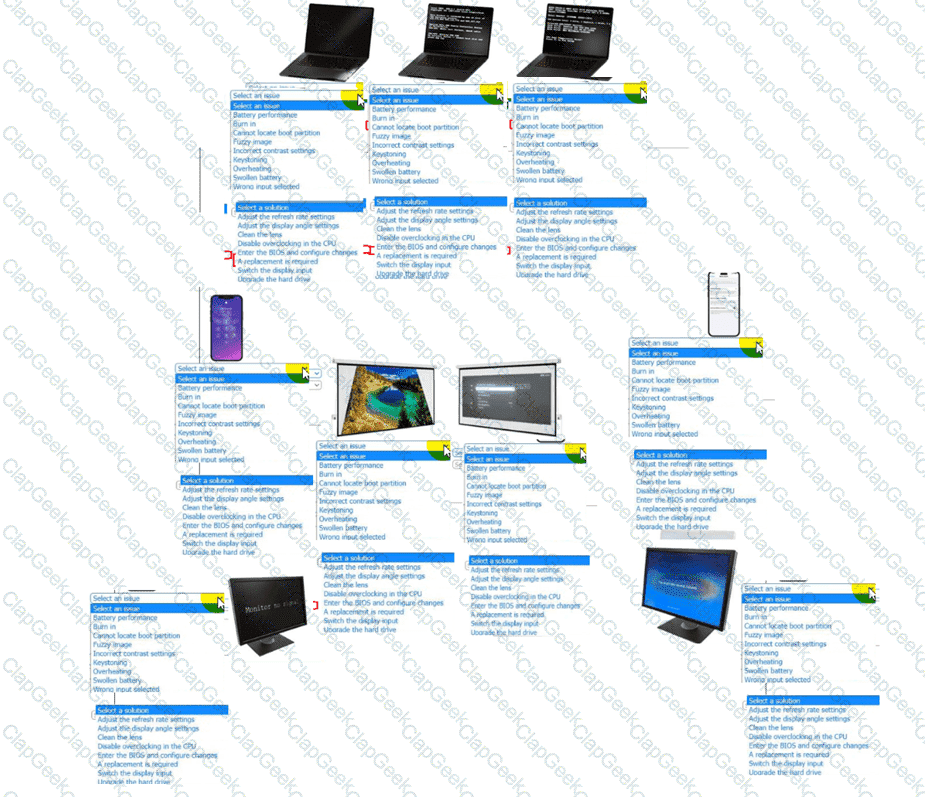
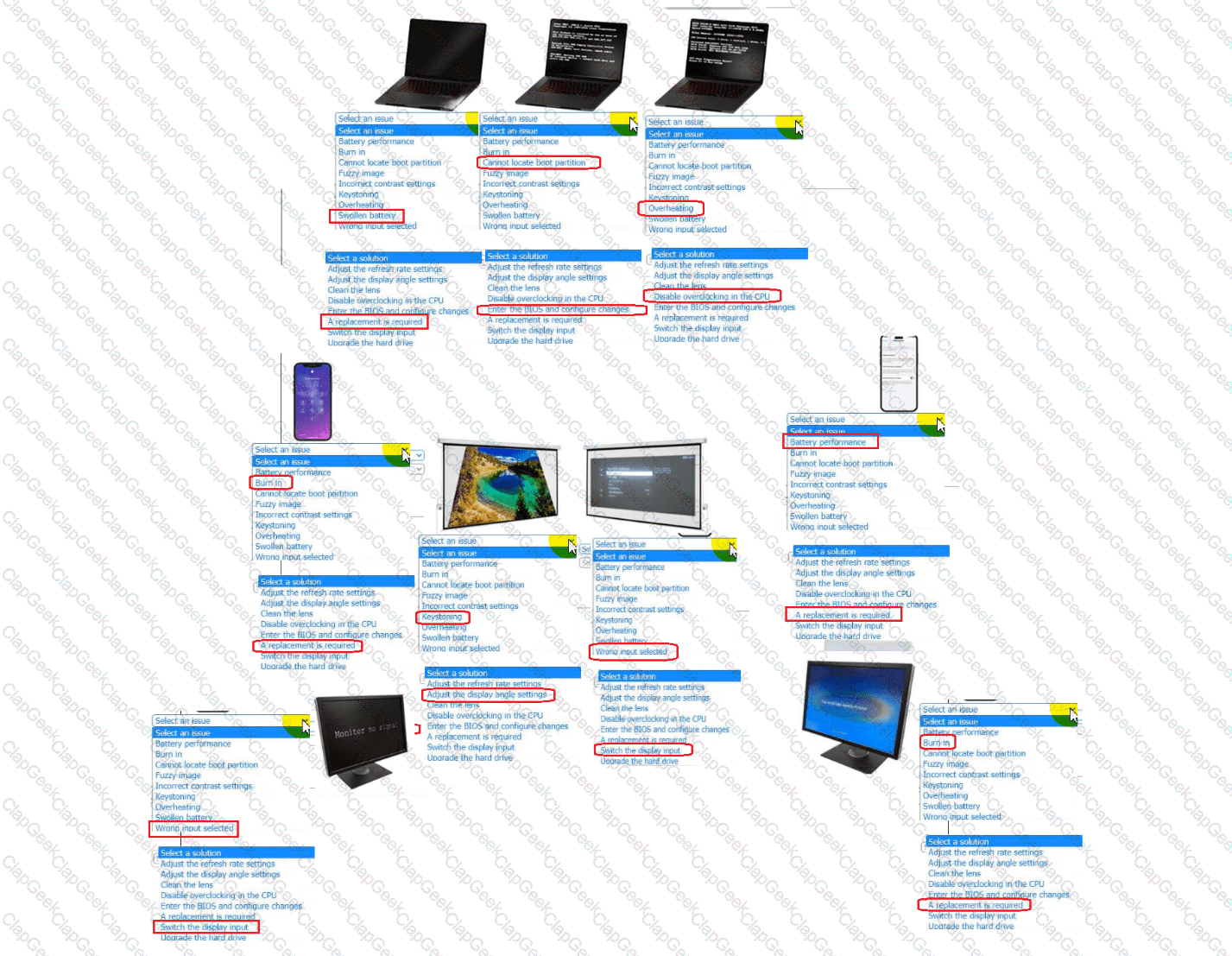
A technician is diagnosing several device issues reported by employees.
INSTRUCTIONS
Click on each device to review the issue. Then select the appropriate issue and solution
from the drop-down menu. Each option may be used more than once.
Which of the following display technologies is known for offering the highest contrast ratios?
A user reports videoconferencing software issues. While in a meeting, the remote participant’s image seems to temporarily freeze before resuming. Which of the following would most likely cause this issue?
A technician needs to replace a laptop ' s display assembly. Which of the following should the technician do to complete this task?
When a customer tries to connect a projector to a laptop in a conference room, the customer is only able to see part of the laptop ' s screen projected onto the wall. Which of the following should a technician do first to troubleshoot this issue?
An administrator for a wireless network is planning the company ' s floor plan using a heat map. Which of the following types of networks is the administrator configuring?
After a laptop display panel was replaced recently, the laptop has had difficulty staying connected to Wi-Fi. Which of the following is most likely causing the issue?
A user has access to drives C:, D:, and F:, but cannot locate the F: drive. Which of the following should the technician do next to troubleshoot the issue?
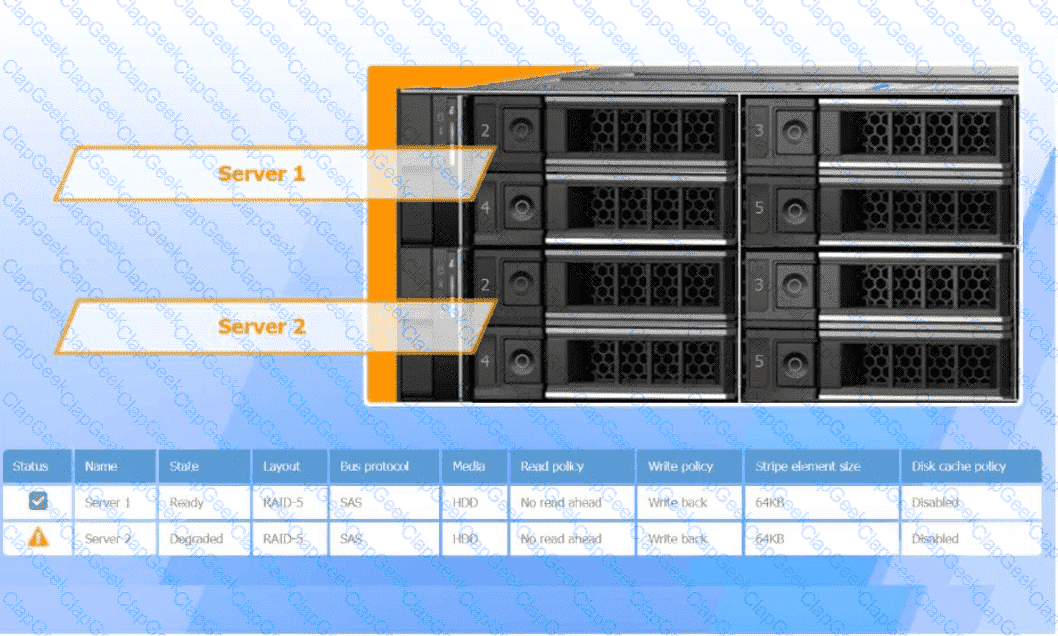
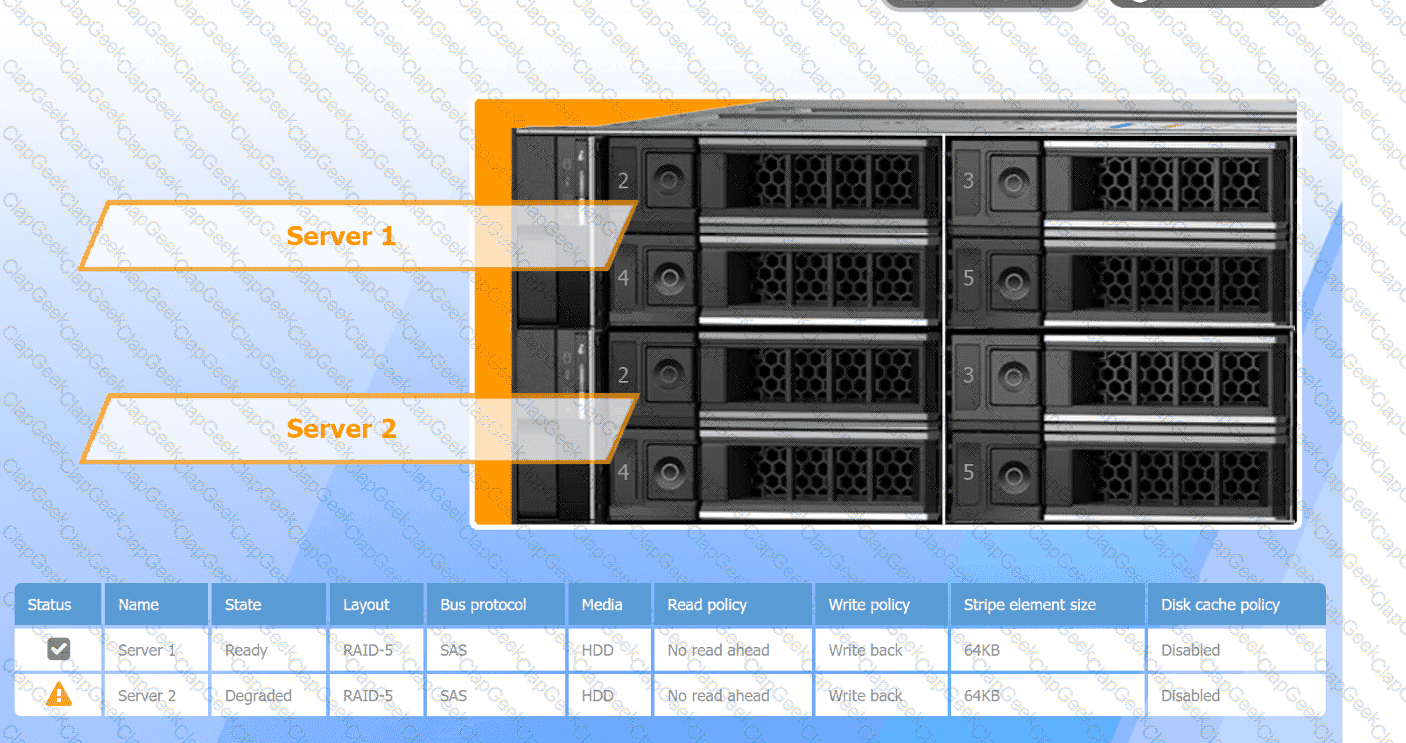
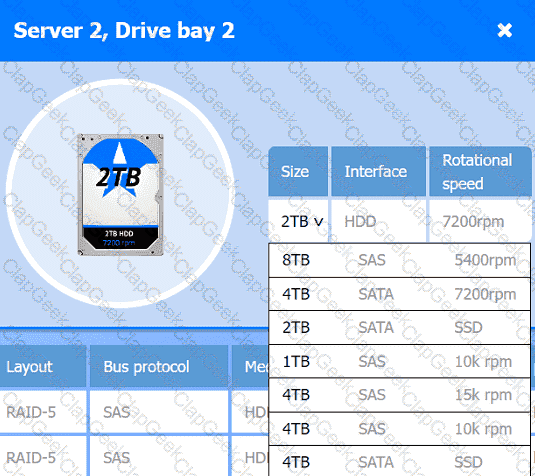
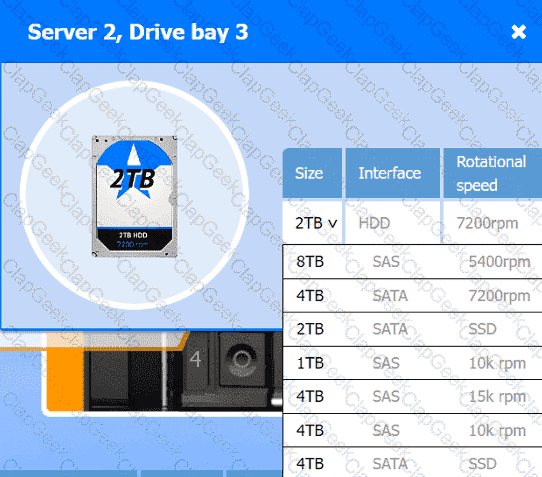
A user reports poor performance on the application server.
INSTRUCTIONS
Click on Server 1 and Server 2 and review the information presented in each chart to
determine which drives need to be replaced.
Select the appropriate replacement drive that should be used, for the least performance degradation to the server.
If at any time you would like to bring back the initial state of the simulation, please click the Reset All button.
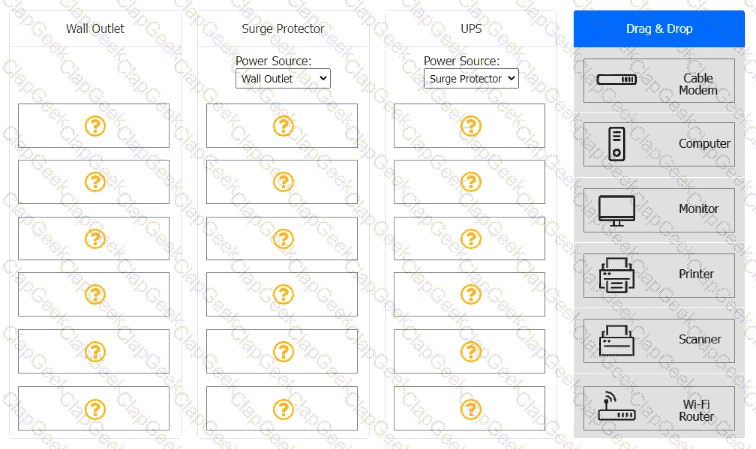
A customer recently experienced a power outage at a SOHO. The customer does not think the components are connected properly. A print job continued running for several minutes after the power failed, but the customer was not able to interact with the computer.
Once the UPS stopped beeping, all functioning devices also turned off.
In case of a future power failure, the customer wants to have the most time available to save cloud documents and shut down the computer without losing any data.
INSTRUCTIONS
-
Based on the customer ' s requirements, connect the customer ' s devices to the proper outlets. Select the power source for the Surge Protector and UPS. This may require reselecting dropdowns or removing tokens.
Each token may only be used once.
If at any time you would like to bring back the initial state of the simulation, please click the Reset All button.
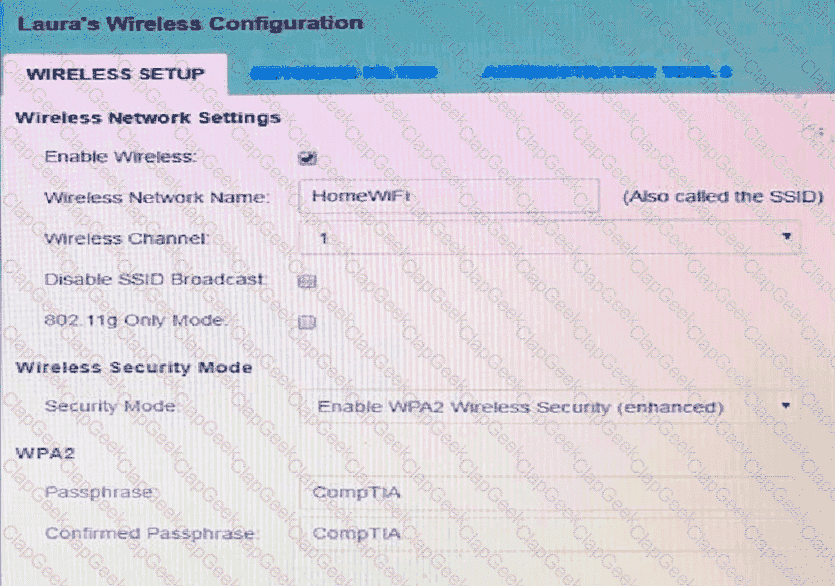
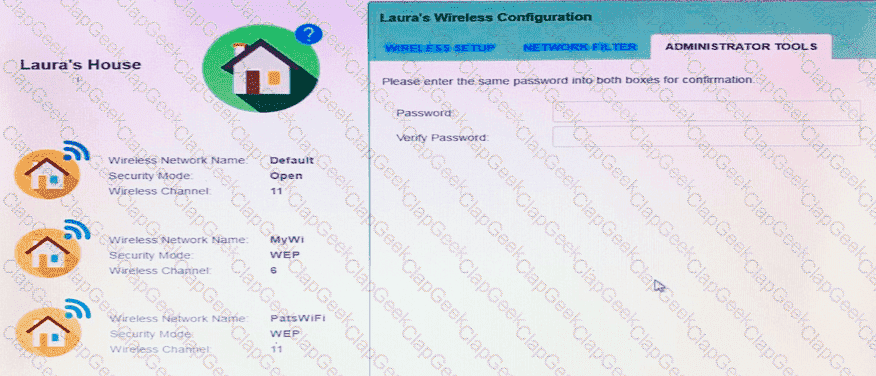
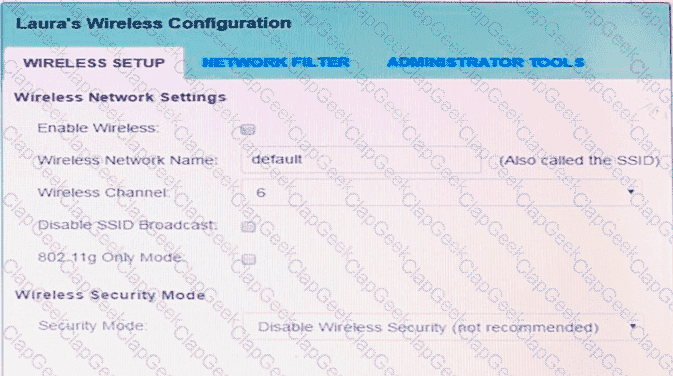
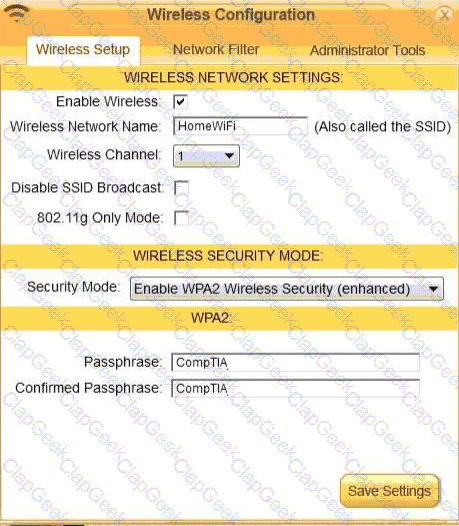
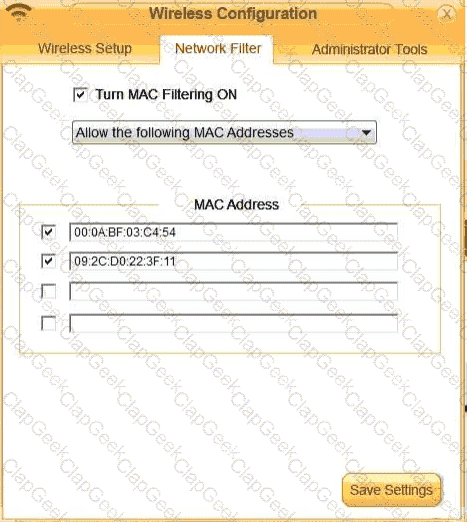
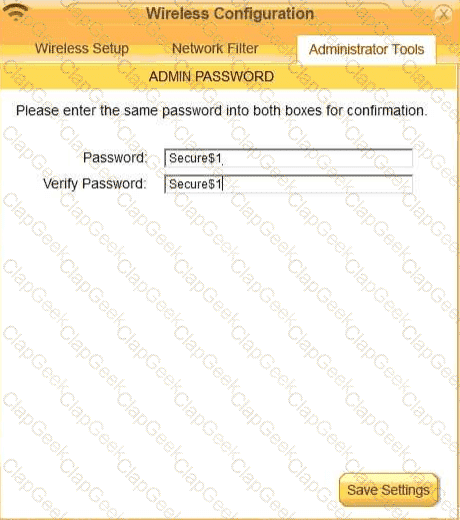
Laura, a customer, has instructed you to configure her home office wireless access point.
She plans to use the wireless network for finances and has requested that the network be setup with the highest encryption possible.
Additionally, Laura knows that her neighbors have wireless networks and wants to ensure that her network is not being interfered with by the other networks.
She requests that the default settings be changed to the following.
Wireless Name: HomeWiFi
Shared Key: CompTIA
Router Password: Secure$1
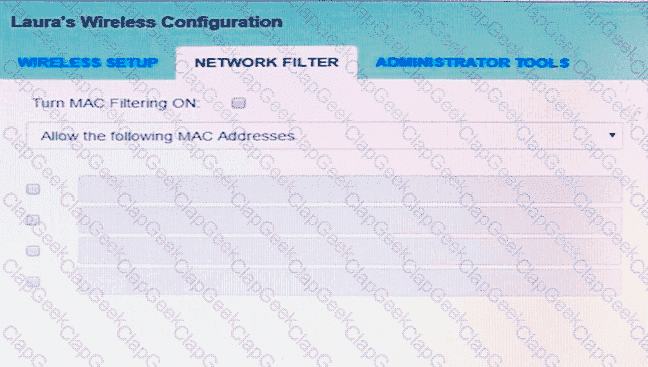
Finally, Laura wants to ensure that only her laptop and Smartphone can connect to the network.
Laptop: IP Address 192.168.1.100
Hardware Address: 00:0A:BF:03:C4:54
Smartphone: IP Address 192.168.1.101
Hardware Address: 09:2C:D0:22:3F:11
INSTRUCTIONS
Configure Laura’s wireless network using the network adapter window.
If at any time you would like to bring back the initial state of the situation, please click the Reset All button.
A company needs to print several copies of a multipage document with the least consumption of resources possible. Which of the following settings will best accomplish this task?
An end user is printing, but the image is being cut off because the paper is too small. The user did put the correct type of paper in the printer. Which of the following should the user change first?
Which of the following virtualization concepts is suitable for a development team that requires a bare minimum platform to run web applications with the capability to dispose and redeploy as needed?
A user receives a warning message on their tablet that states, " You are locked out due to unlawful activity. " The user was shopping for clothes online. Which of the following should a technician try first?
A user is trying to present a video in a conference room. The video appears when the user connects the computer to the TV display with an HDMI cable. However, there is no sound coming through. The computer and TV volumes are at 50%. Which of the following should the user perform next?
Which of the following is most commonly used to increase 802.11 wireless throughput speed?
A technician investigates a faulty workstation that shuts down at random intervals. The technician starts the machine and hears an unusual grinding sound coming from inside the case. Which of the following would most likely cause the malfunction?
A user ' s computer is connected to a docking station at their desk. The user cannot access the department file servers even though the docking station has a hardwired connection. Which of the following steps should a technician take to restore the user ' s access?
A financial institution ' s application sends a notification to customers when a nearby store accepts contactless payments. Which of the following should be enabled so the application works as intended? (Select two)
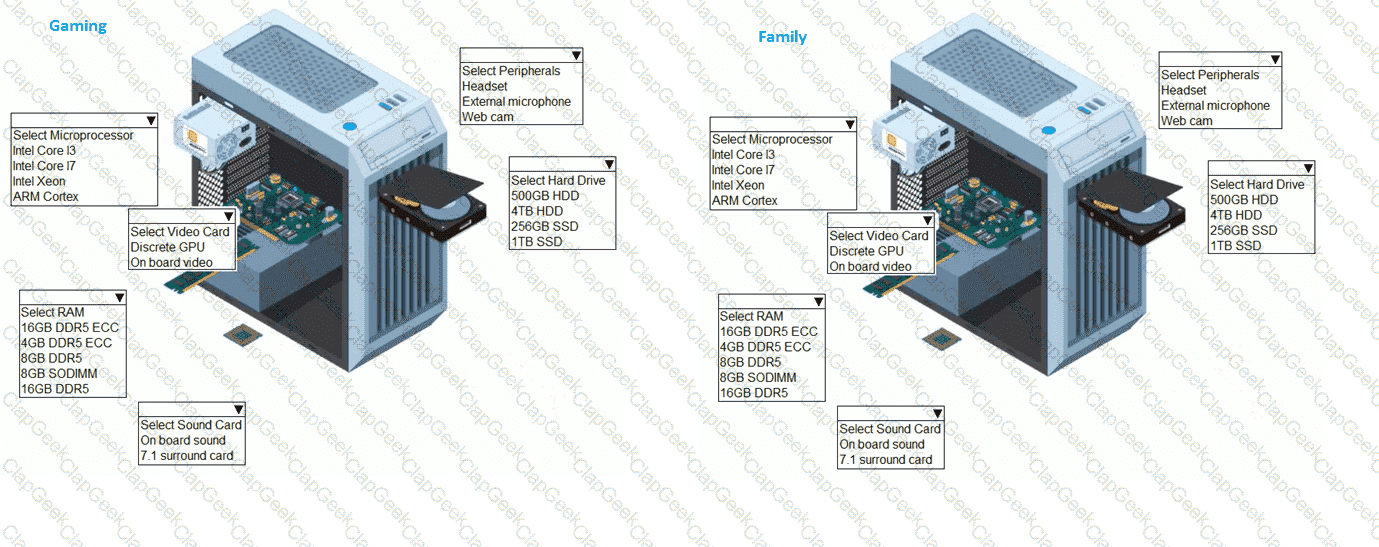
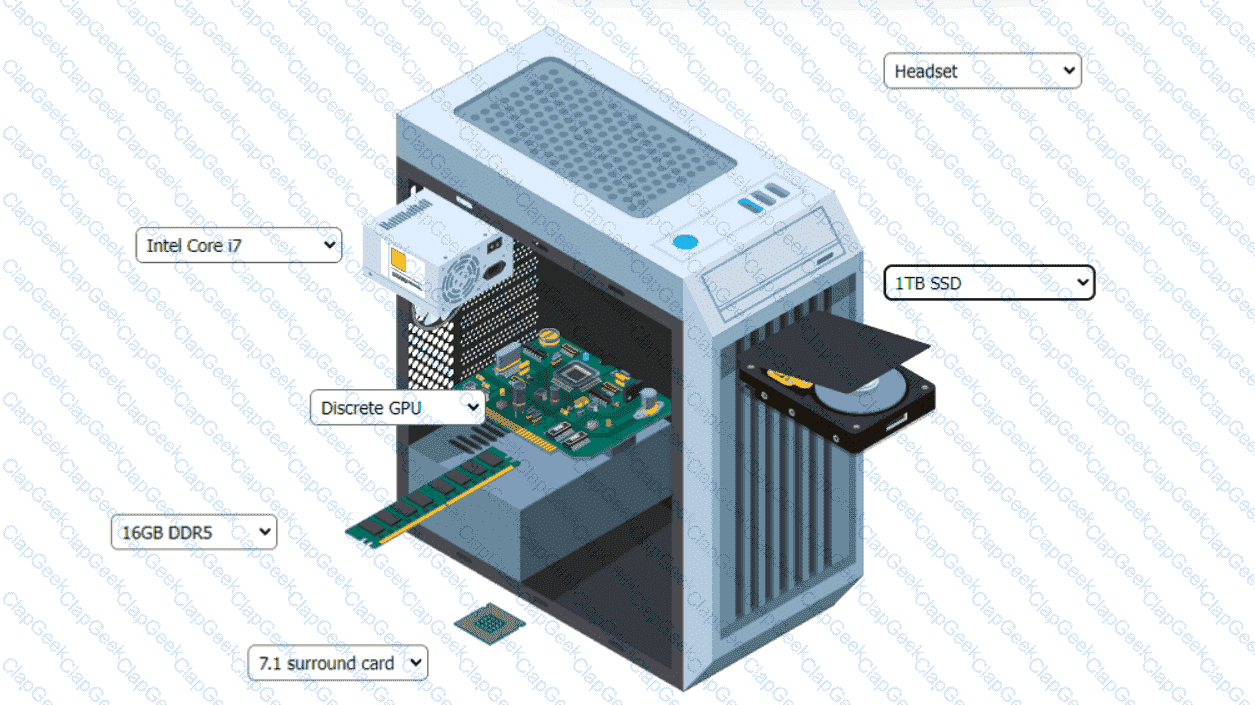
A customer has contacted you about building two new desktops. The first desktop will be a gaming workstation. The customer requirements include:
Playing the newest games at a high frame rate
Fast game load times
Enough storage to have several games installed at once
High-end audio
No concern about cost
Running the current Windows OS
The second workstation will be a family workstation. The requirements include:
Capability for word processing, videoconferencing, and basic web surfing
Minimal cost, as long as it meets the requirements
Running the current Windows OS
A technician is building a custom CAD workstation with a high-end graphics card. The customer requests that the system has the highest possible stability. Which of the following is the best choice for the power supply?
An administrator must configure a server that prioritizes data availability. Because the server will be accessed by many users, the administrator must also consider performance. Which of the following RAID levels best meets these requirements within a single array?
A technician adds the NTP service to a server and configures all network computers to that service. Which of the following is the technician most likely trying to achieve?
A technician is migrating an application server to another server. Which of the following DNS records should the technician create to ensure seamless connectivity?
Which of the following RAM characteristics allows for recovery from data faults in memory modules?
A client requests a new computer for high-performance video editing and virtual reality applications. The technician must select a compatible motherboard for an Intel Core i9 processor and multiple graphics cards. Which of the following should the technician do to meet the client ' s needs?
A user notices that their laptop experiences frequent and unpredictable shutdowns, even when the battery percentage is not low. Which of the following is most likely the cause of these shutdowns?
A technician needs to configure an MX record. Which of the following will the technician use?
A technician needs to enter a reservation into a router for a customer’s printer to ensure that the printer can be reached consistently. Which of the following does the technician need from the printer?
A company updates its office with a new multifunction printer. Users report issues when they try to use scan-to-email functionality. The technician must ensure this feature is properly enabled. Which of the following should the technician do to resolve this issue?
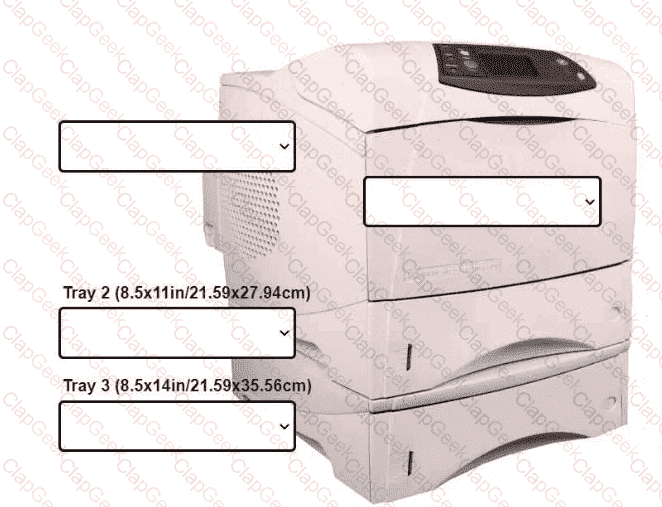
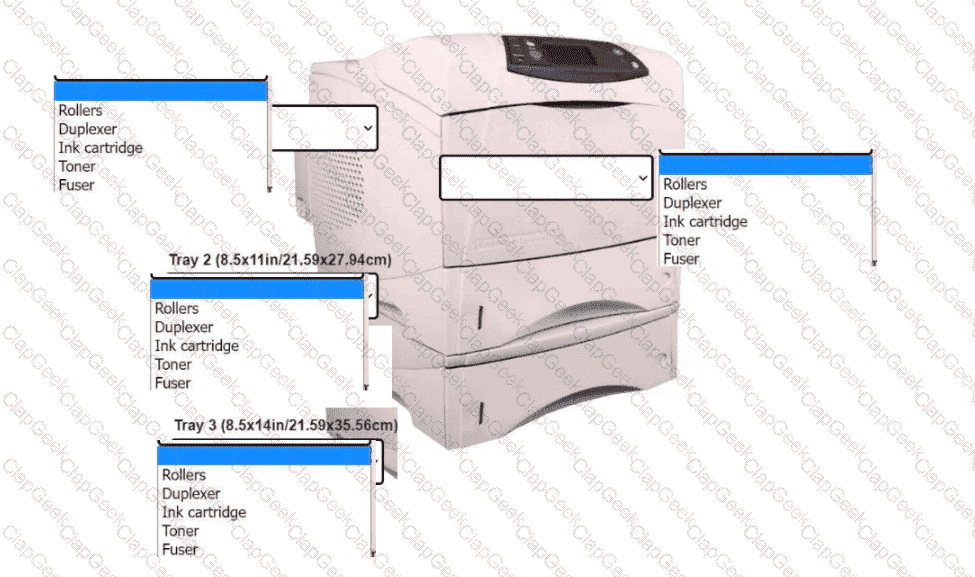
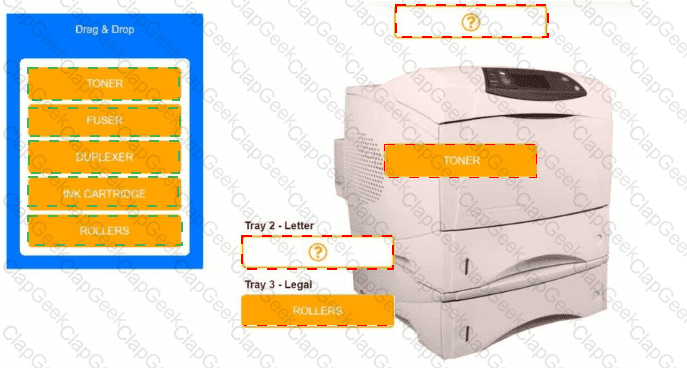
An office manager reports that a printer is experiencing performance issues. Printouts
are smudging when they are handled, and, recently whenever they need to print legal
sized documents, the paper jams before anything is printed on it.
The following paper sizes are used:
Letter (8.5x11in/21.59x27.94cm)
Legal (8.5x14in/21.59x35.56cm)
Oversized (11x17in/27.94x43.18cm)
INSTRUCTIONS
Using the dropdown menus, select from the
available printer parts to replace only the
faulty components on the office printer to
resolve the stated issues.
If at any time you would like to bring back
the initial state of the simulation, please click
the Reset All button.
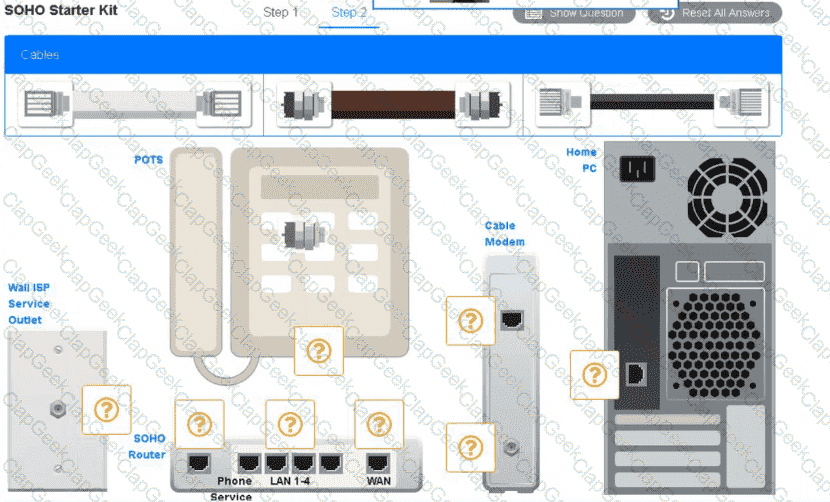
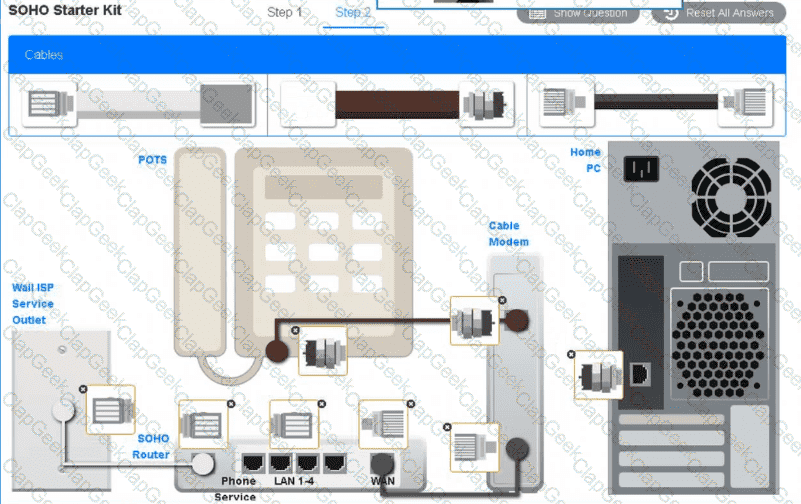
A small ISP has hired a new technician Joe, the new technician, is being trained to configure customers* home networks The trailing instructor gives me technician a starter kit with cables, cable ends, and other network equipment and asks mm to build a working network.
The computer should be connected to have internet connectivity and the phone should be connected to have a dial tone.
INSTRUCTIONS
Use the appropriate cables. cable ends, tools and equipment to configure the network ana connect an components accordingly
There are 3 steps and the simulation starts on step 1.

A server that is crucial for daily operations is experiencing degraded performance. Upon investigation, a technician sees that one of the drives in a RAID 5 configuration shows a failure alert. The system must remain online during business hours, and the controller does not support hot swapping. Which of the following should the technician do to solve the issue?
A user reports that a network printer has frequent paper jams. The technician examines the printer and finds no obvious obstructions or foreign objects in the paper path. Which of the following should the technician do to resolve the issue?
A company rolls out a mandatory OS update to all PCs. A legacy application that one department uses does not function on the new OS and is EOL. Which of the following should a technician suggest to solve the issue with minimal data loss, expense, and disruption to the users?
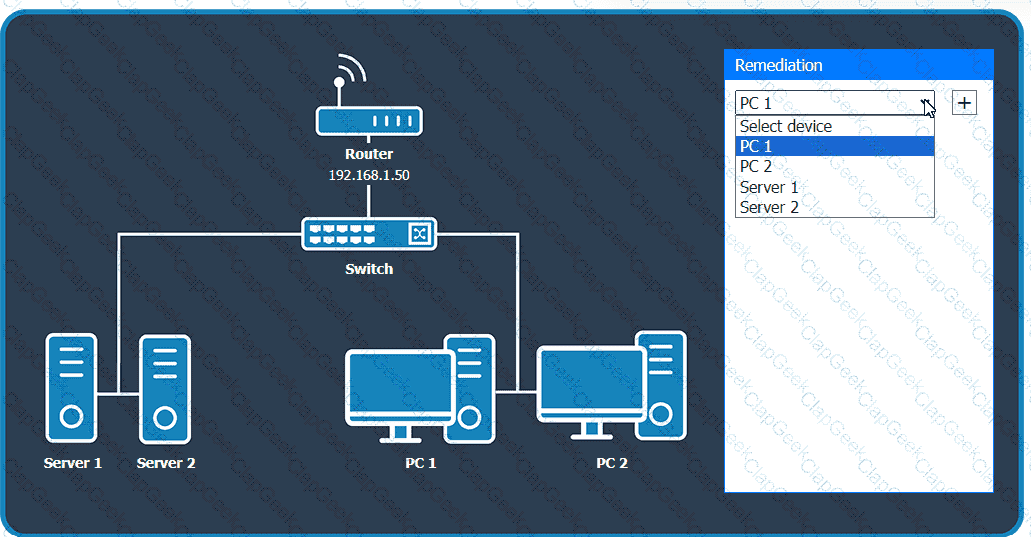
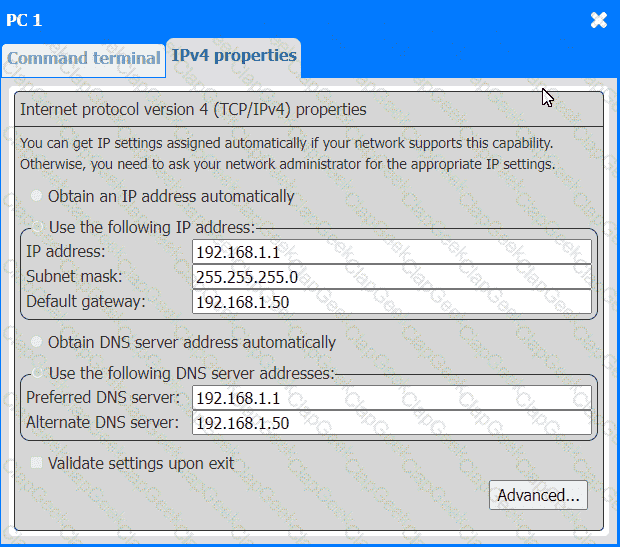
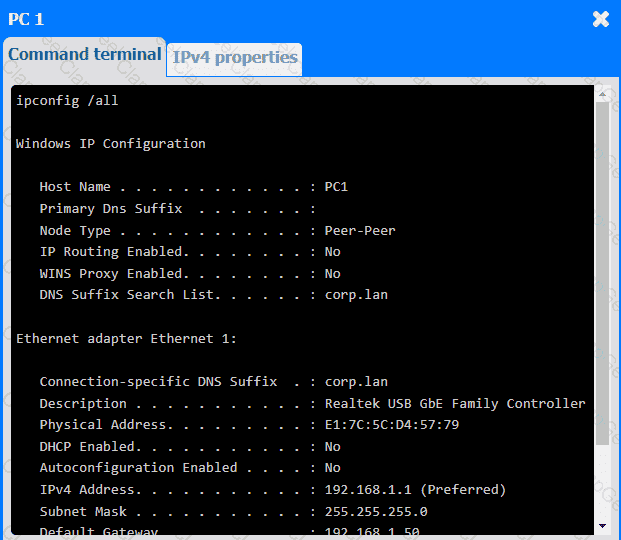
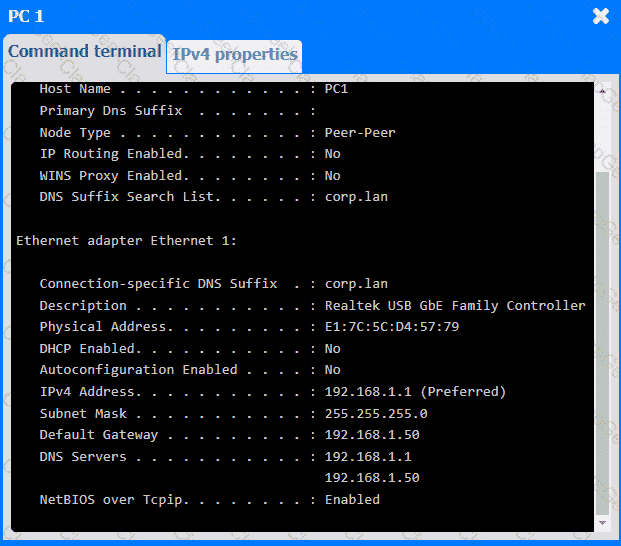
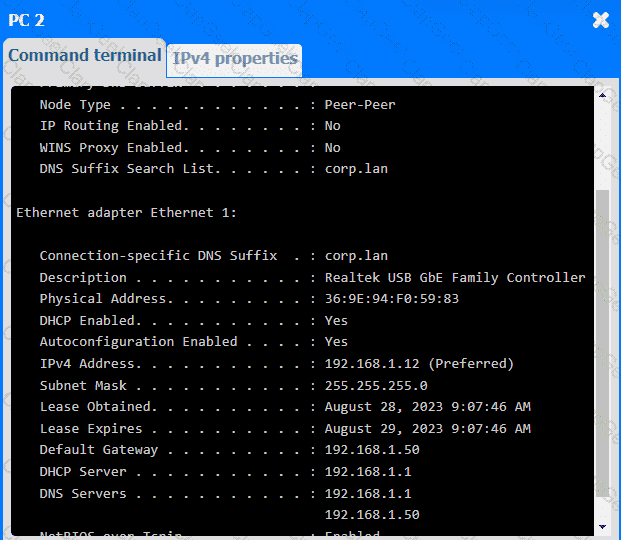
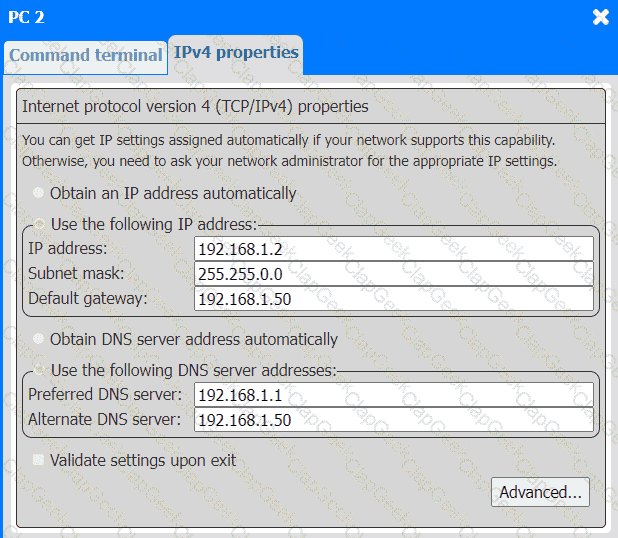
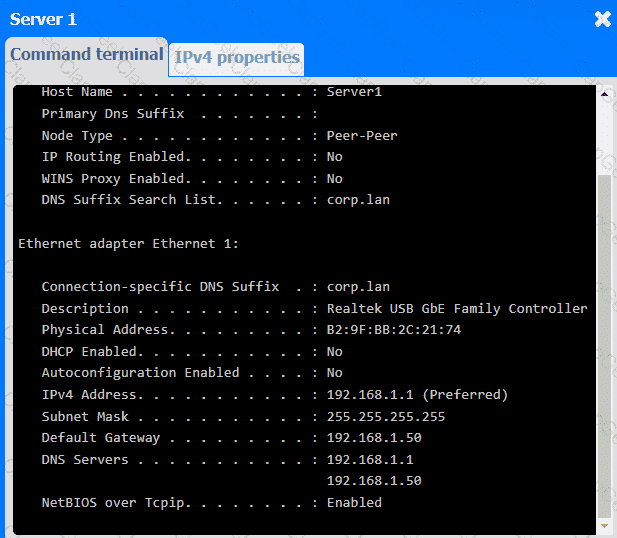
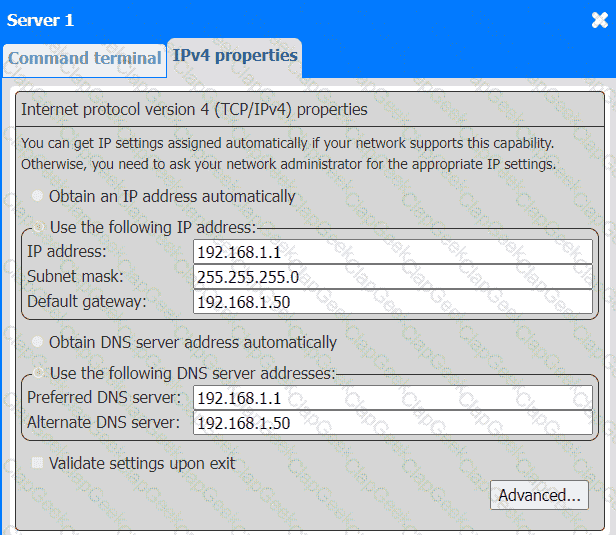
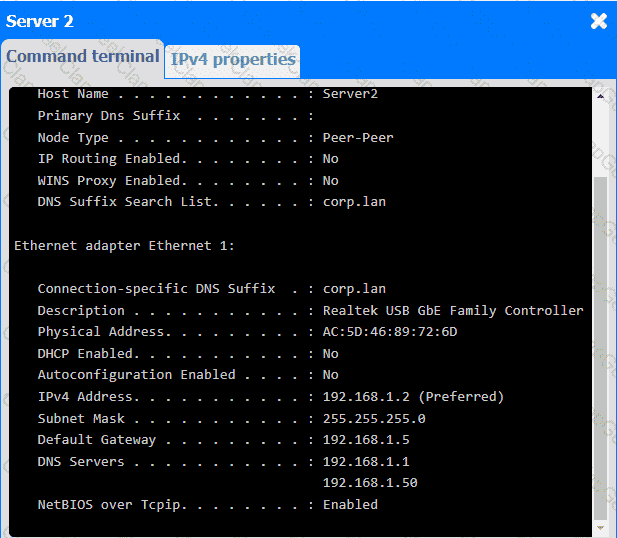
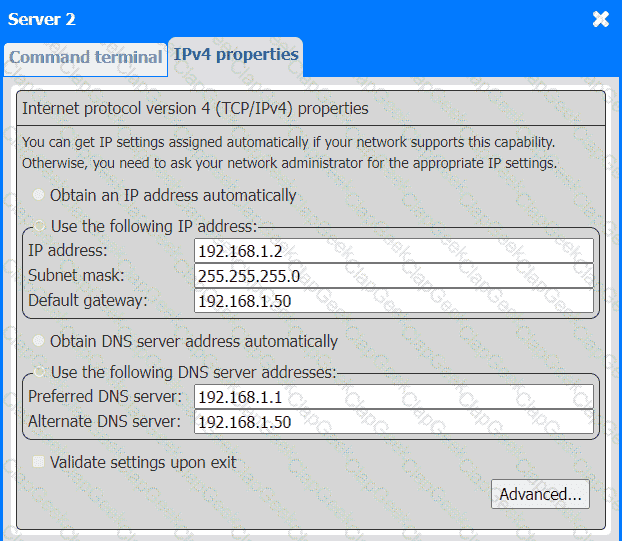
A third-party contractor recently installed a new switch, router, and cabling for a small
corporate office. After the installation, users started experiencing issues connecting to
resources over the network.
INSTRUCTIONS
Click on each PC and server to review outputs. From the remediation section on
the right, select an issue and solution for each device.
Which of the following devices forwards data between different networks by analyzing the headers of packets?
Which of the following is the best option to maintain a stable, tethered connection between a cell phone and a laptop?
A shared printer frequently jams, especially when printing double-sided documents. The paper size is standard office A4. The printer is used regularly throughout the day. Which of the following actions should the technician take to address the paper jamming issue?
Which of the following technologies can cause an application to open even though no device has been paired with the phone?
Which of the following network services is used to assign an IP address to a network host?
A help desk technician investigates a laser printer issue. Smudges are appearing on the printed pages, but they are not present on the document that was sent to the printer. Which of the following should the technician do first to diagnose the issue?
Which of the following is a key characteristic of cloud computing that ensures resources are dynamically distributed to meet varying workloads?
A technician checks a RAID 5 array and sees a S.M.A.R.T. alert on one disk, but the array still shows healthy. What should the technician do next?
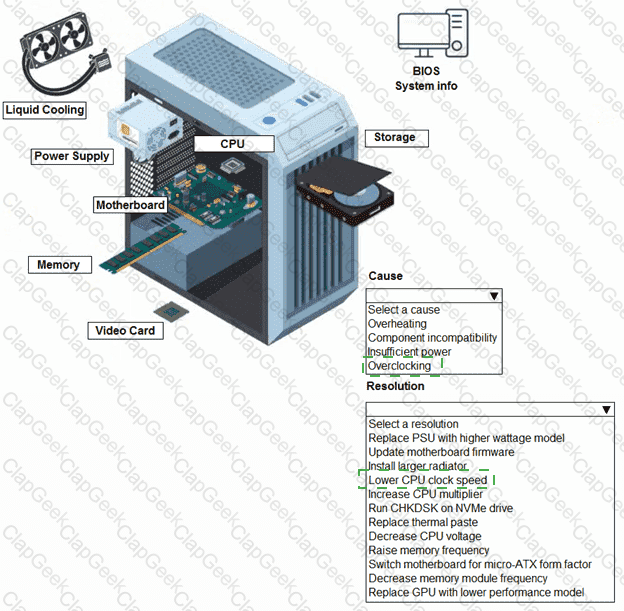
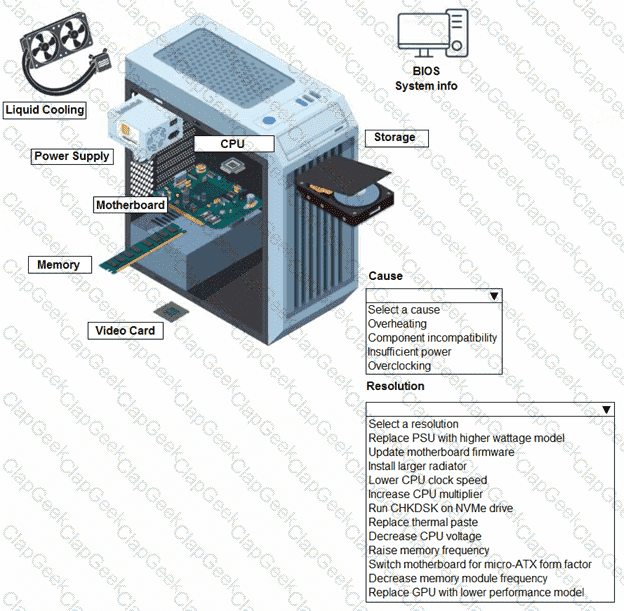
A customer built a computer for gaming, sourcing individual components and then assembling the system. The OS starts up, but within a few minutes the machine locks up. The customer brought the computer to a technician to diagnose the issue.
A user ' s monitor shows strange colored lines and flickers when adjusting the brightness. The user requires the device for daily professional tasks. Which of the following should a technician do to effectively address the screen issue, given cost and urgency considerations?
A technician is troubleshooting a workstation that repeatedly shuts down within ten minutes of being turned on. The technician notices a loud clicking sound coming from inside the case. Which of the following components should the technician check first?
A company deploys server machines in a public cloud. Which of the following cloud service models is this an example of?
An organization upgrades all desktops to Windows 11 and must ensure protection from malicious software at startup. Which option should be enabled?
A technician is attaching additional internal USB ports to a motherboard. In which of the following locations will the technician most likely connect these ports?
A technician needs to configure an MX record. Which of the following will the technician use?
A technician is having issues replacing a laptop ' s wireless card because the cover seems to be stuck Which of the following should the technician do next to troubleshoot this issued
An IP address is automatically assigned to a single workstation in an office, but the technician confirms the IP address is not in the lease pool. This workstation is having issues accessing the internet and internal file shares. Which of the following address types has been automatically assigned?
A technician purchases a device that connects directly to the rear of a laptop and provides a one-to-one match for every peripheral connection. Which of the following best describes this device?
A technician builds a workstation. When the technician starts up the workstation, the technician notices a burning smell. During POST, the workstation shuts down. Which of the following is most likely the cause of these issues?
A user reports cursor issues on a company laptop. Technician finds a bulge under the trackpad. Which component should be replaced first?
A user ' s wireless headset shows a " connected " status when turned on, but the Bluetooth list on the user ' s phone shows that the headset is " not connected. " Which of the following should the technician do?
A technician connects a WISP modem to a portable router in order to provide an Ethernet connection to a laptop. Which of the following network types has the technician configured?
Which of the following allows an internal application to be hosted without managing the underlying OS?
A company will retire a legacy application in one year but wants to decommission the physical environment now. Which migration method is best?
A technician is working on a RAID 1 array that is apparently degraded. The technician verifies the RAM and power are both operating as expected. Which of the following can the technician do to further isolate the issue?
Which of the following will most likely be installed in an NVMe port on the motherboard of a desktop PC?
A technician receives a S.M.A.R.T. error on a PC. When the technician presses the Esc key, the PC continues to turn on without any further issues. Which of the following should the technician do next?
A Wi-Fi router is set up in a central room. A user on the outer edge of the building reports slow connections and intermittent internet drops. Which of the following actions will solve the issue?
A technician is manually configuring network settings on a user ' s computer to route network traffic to a newly deployed firewall. Which of the following should the technician change?
The power supply for a user ' s gaming computer fails. The user buys a replacement online. The user connects the power supply to the motherboard, the graphics card, and the SSDs, but the computer fails to start and displays a critical error. Which of the following is the most likely cause?
A support technician receives a call stating that a user has added a device to the network. The user used the same configurations from another workstation. When both workstations are turned on, neither can access the network reliably. Which of the following is the most likely cause of the issue?
Which of the following storage communication interfaces typically offers the best read/write speeds?
A company uses vital legacy software that does not run in the current OS version Which of the following will best support the software while keeping the OS current?
Which of the following options offers the best connectivity performance with limited necessary accessories?
A client is unable to unlock their smartphone. When they try to enter their code, the input is unsuccessful. Which of the following components has most likely failed?
A user ' s laptop experiences intermittent issues during startup. A technician finds that the user has left a corporate flash drive plugged in, which is causing the issues. Which of the following should the technician configure?
An employee who travels worldwide wants a workstation to perform the same whether the workstation is in the corporate office environment or elsewhere. Which of the following should a technician implement?
A company policy change requires all computers to be encrypted. Which of the following technologies should a technician configure to meet this new requirement?
A small company recently added VoIP through its ISP. Users report intermittent call quality issues during peak hours. Which of the following steps should the IT administrator take to solve the issue?
Which of the following cables should be installed if nearby electromagnetic interference is a possibility?
A SOHO user cannot connect to the internet. Their configuration shows:
IP: 192.168.223.15
Mask: 255.255.255.0
Gateway: 192.168.233.1
DNS: 8.8.8.8, 4.2.2.1, 4.2.2.2
Baseline documentation shows valid subnet range: 192.168.200.0–192.168.232.255.
Which setting must be changed?
A device with an IP address of 169.254.34.24 is having trouble accessing internet websites. Which of the following is most likely causing the issue?
The output from a dot matrix printer has become lighter over time. Which of the following should a technician do to fix the issue?
An administrator selects a new platform that provides the following benefits:
• Shares a host OS
• Shares kernel resources
• Rapid start and deployment
• Limited isolation
Which of the following virtualization options did the administrator select?
An employee ' s screen keeps flashing. Sometimes the picture goes out and comes back. The employee checks the power cord and confirms the device is plugged in fully. Which of the following should a technician check for first?
Which of the following should a technician create to assign a permanent IP address to a PC using DHCP?
A technician receives several complaints from the same office about VoIP calls sounding broken up, being difficult to hear, and having lagging audio. The technician arrives on-site and runs an internet speed test on several wired and wireless computers. Internet speed seems normal throughout the office. Which of the following should the technician do to fix the call issues?
Which of the following should a technician use in DNS to map a device to an IPv6 address?
A technician replaces a laptop ' s failed motherboard. During validation testing, the wireless is slow and shows a weak signal. Which of the following should the technician do first to verify the source of the issue?
An engineer must implement a solution to facilitate and maintain an organization ' s legacy application until it is retired. The application is currently hosted on three physical servers. Which of the following is the most suitable concept?
A student configures a wireless SOHO network to connect four laptops and one multifunction printer. All laptops must have internet access and be able to use the printer. Which of the following settings ensures the printer is always available?
A computer displays an error message indicating there is insufficient storage when installing applications. The user reports slow application load times. Which of the following replacement components would best resolve this issue?
A technician must install a printer at a corporate office for all employees to use. Which of the following is the best option?
A technician is troubleshooting an iOS-based device. The device’s owner reports that the battery is discharging more quickly than expected. The technician inspects the following device parameters and configuration:
Battery health: 82%
Battery charge: 46%
Hotspot: On
Roaming: On
Used space: 48/64GB
Warranty: Expired
Which of the following would most likely cause the issue?
Which of the following is an advantage of using a hybrid cloud instead of a public cloud?
A user would like to connect a laptop to a monitor, keyboard, and mouse when in the office. The user prefers to use as few cables as possible. Which of the following would best achieve that goal?
The display in a conference room has a burn-in get fastestthat does not match the presentation Which of the following would test resolve the issue?
A technician needs to move a workstation to a different logical network segment. Which of the following technologies should the technician use?
Which of the following should a technician use to terminate a Cat 6 cable to a patch panel?
Which of the following cloud delivery models should an organization choose when it requires ownership of all physical hardware?
A user needs cellular internet connectivity for their laptop without using an external device. Which of the following technologies can the user use on their laptop to achieve this connection?
A human resources department uses a network shared with other departments to produce a variety of printed resources for legal retention. The human resources department only wants Its members to have access to these materials. Which of the following should the technician Implement?
Which of the following minimizes the time it takes to connect a display, keyboard, mouse, and network cable to a laptop?
A projector has been shutting down after 30 minutes of use, and it has a strange smell The technician confirms the power source is not the cause of the issue Which of the following steps should the technician take next to resolve this issue?
Which of the following will a company most likely use to control which websites a user can access?
A technician recently updated the firmware on a dual-BIOS motherboard. Following the update, the system has been stuck in a boot loop and cannot start an OS from any internal or external device. The technician cannot access the UEFI menu either. Which of the following should the technician do next?
A user reports that a laptop has intermittent internet connectivity while working remotely. The issue occurs only at home when the laptop is connected through Ethernet. The issue does not occur when the laptop uses Wi-Fi. Which of the following steps should the technician take next?
A network operations analyst receives an automated alert regarding a server with an array. The analyst walks over to the server and sees a blinking orange light at the hard disk bay. The server is configured for RAID 1. Which of the following should the analyst do to resolve this issue?
A user ' s laptop monitor dims every evening. The user manually adjusts the screen setting but wants a permanent solution. Which of the following settings should a technician change to prevent the issue?
Some users are unable to access their workstations. An administrator runs ipconfig on one of the workstations and sees the following:
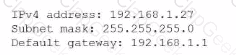
The administrator runs the following command and receives this output:
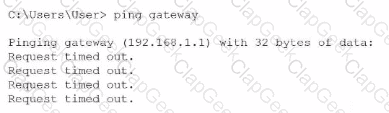
Which of the following is the source of issue?
A technician is troubleshooting a connectivity issue on a network computer. The technician runs ipconfig in a command prompt and receives the following IP address:169.254.0.6. Which of the following is most likely the type of IP address being assigned?
Which of the following types of connectors does an IDE hard drive use for power?
A technician needs to replace a laptop ' s display assembly. Which of the following should the technician do to complete this task?
A user reports that a software application functioned as expected the previous day, but this morning, the user is unable to launch the application. Which of the following describe what the technician should do next?
A technician receives a tablet that looks like it has a bulge inside. The bulge is pushing the screen away from the backplate. The tablet still turns on when it is plugged in, but the screen looks damaged and turns off when unplugged. Which of the following is the most likely cause of this issue?
A salesperson is unable to reach the internet from a home office PC A support technician wants to verify the router is receiving a valid public IP address Which of the Wowing is a valid public IP address in this scenario?




TESTED 04 Oct 2026
 A close-up of several cables AI-generated content may be incorrect.
 A group of different colored rectangular objects AI-generated content may be incorrect.
 A screenshot of a computer AI-generated content may be incorrect.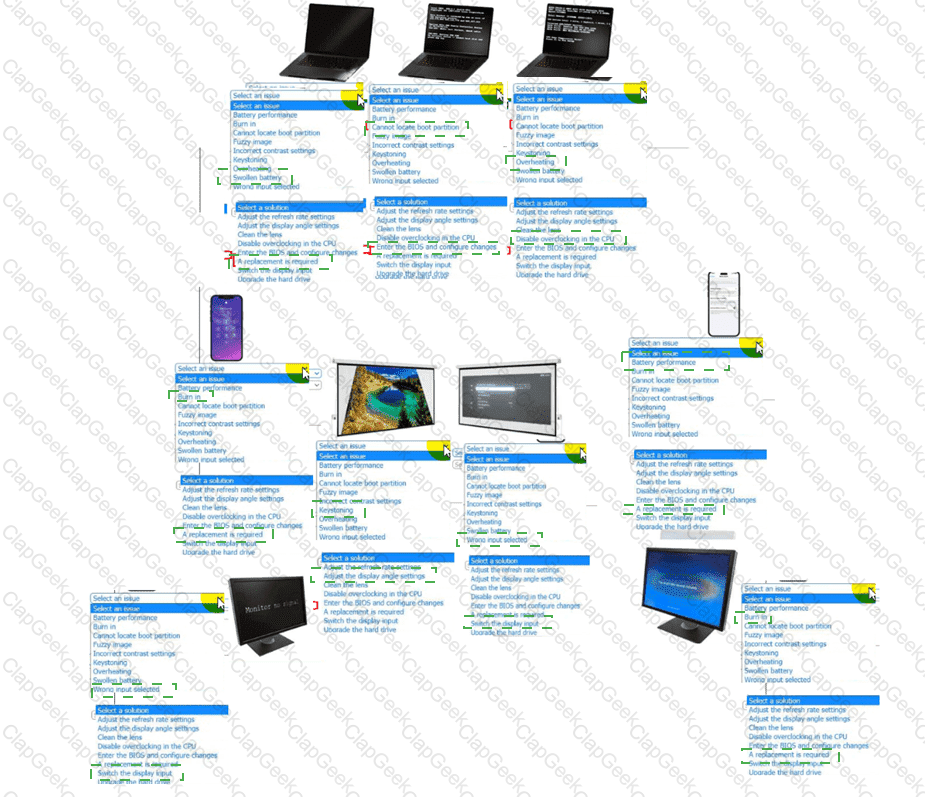
 A screenshot of a computer AI-generated content may be incorrect.
 A computer server with many black and silver parts AI-generated content may be incorrect.A computer server with many black boxes Description automatically generated with medium confidence
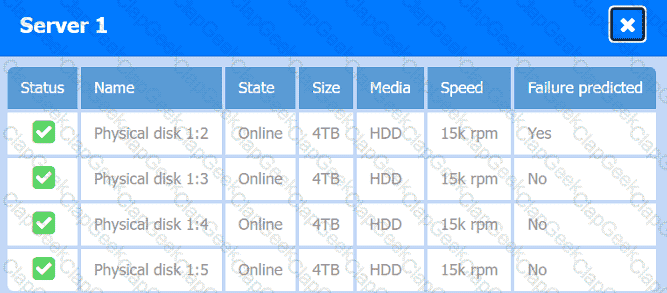 A screen shot of a computer AI-generated content may be incorrect.A screen shot of a computer Description automatically generated
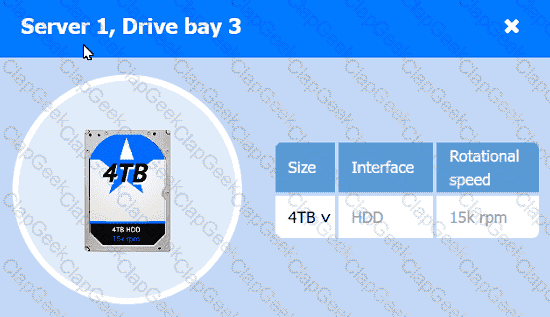 A computer screen shot of a computer AI-generated content may be incorrect.A computer screen shot of a computer Description automatically generated
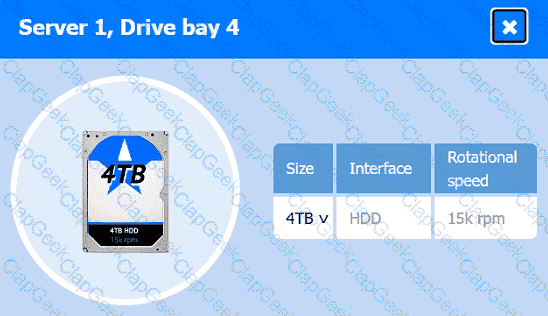 A computer screen shot of a computer AI-generated content may be incorrect.A computer screen shot of a computer Description automatically generated
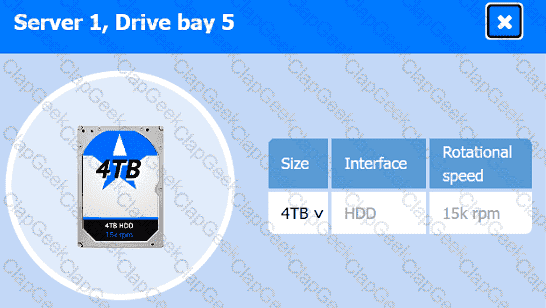 A computer screen shot of a computer AI-generated content may be incorrect.A computer screen shot of a computer Description automatically generated
 A screenshot of a computer AI-generated content may be incorrect.A screenshot of a computer Description automatically generated
 A screenshot of a computer AI-generated content may be incorrect.A screenshot of a computer Description automatically generated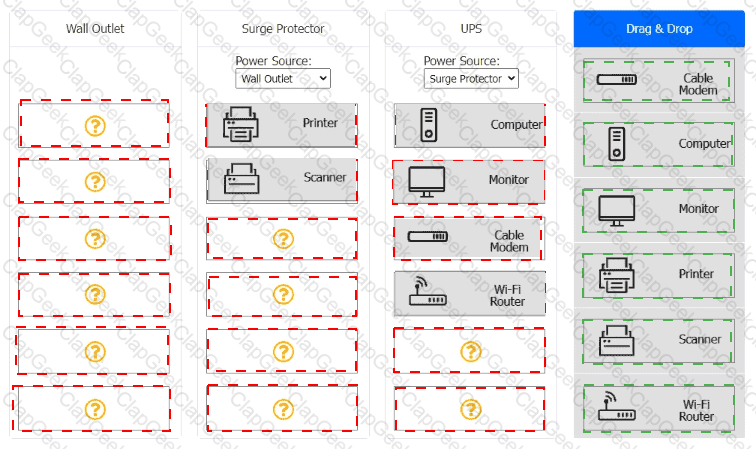
 A screenshot of a network settings AI-generated content may be incorrect.
 A screenshot of a computer AI-generated content may be incorrect.
 A screenshot of a computer AI-generated content may be incorrect.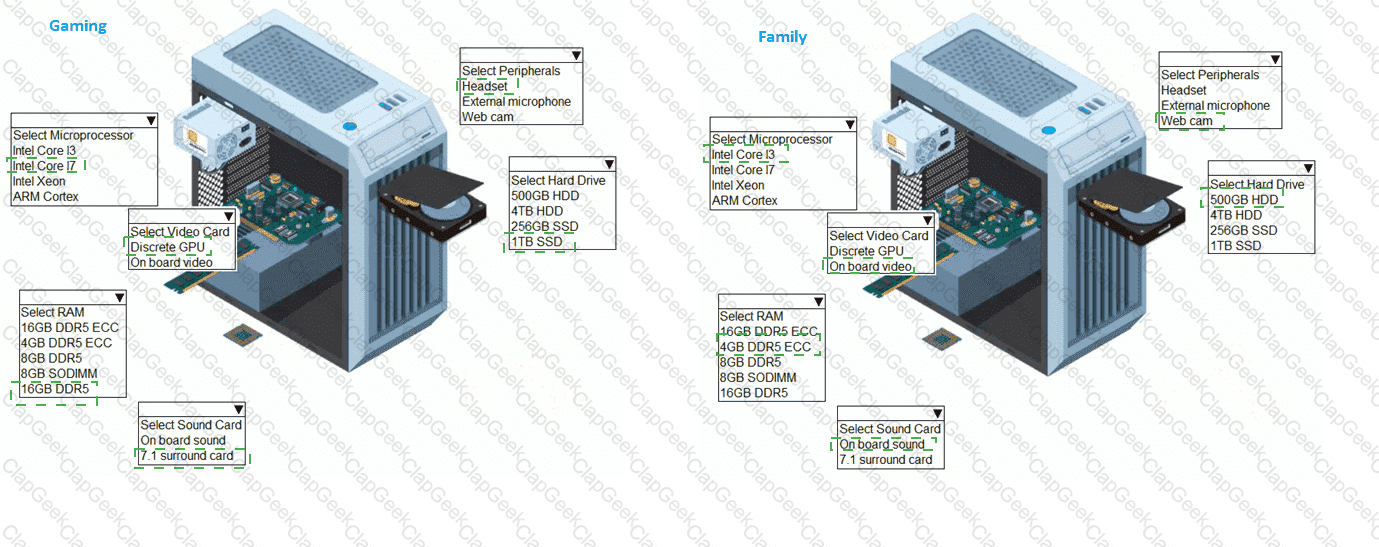
 A computer tower with a hard drive and a hard drive AI-generated content may be incorrect.
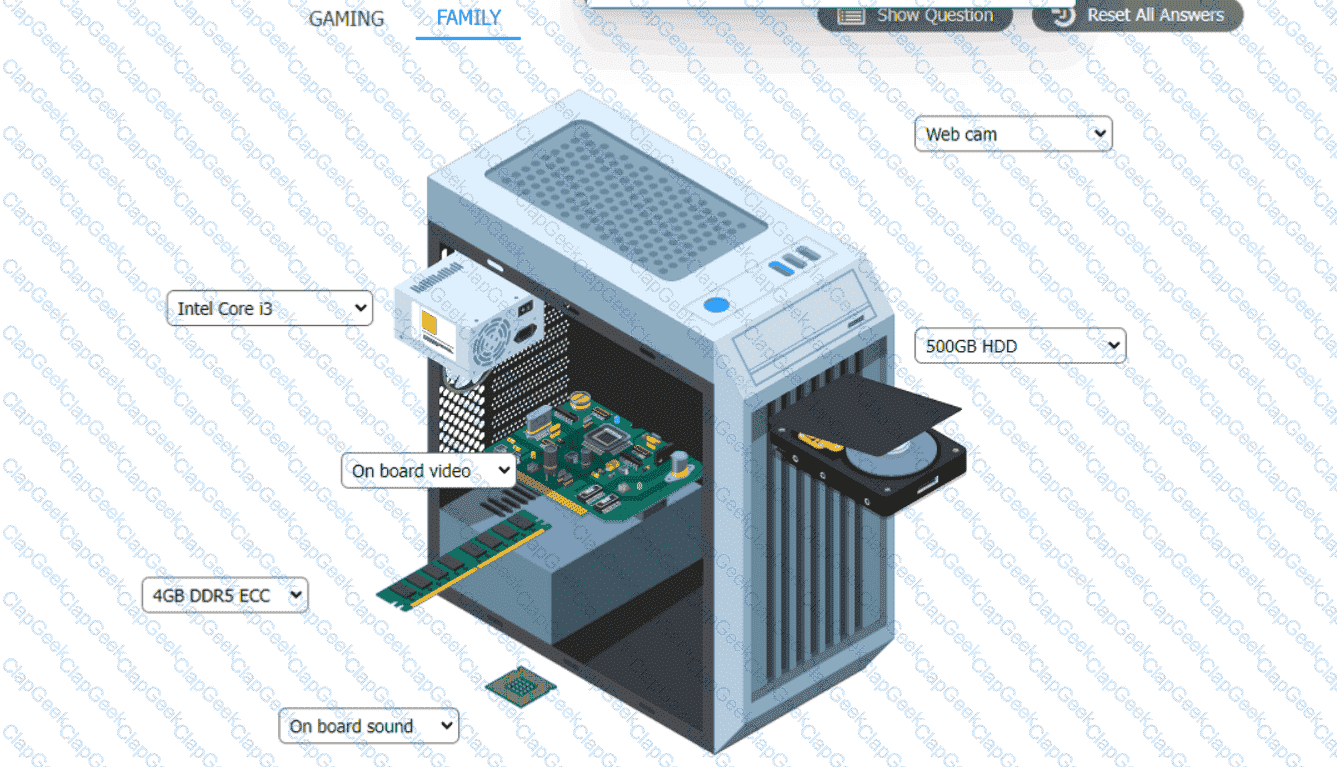 A computer tower with a computer and a hard drive AI-generated content may be incorrect.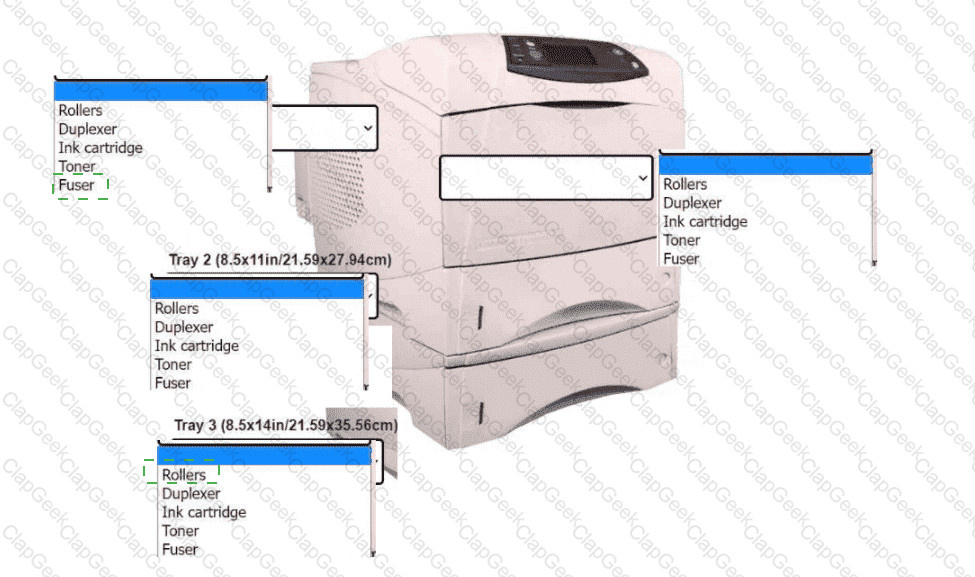
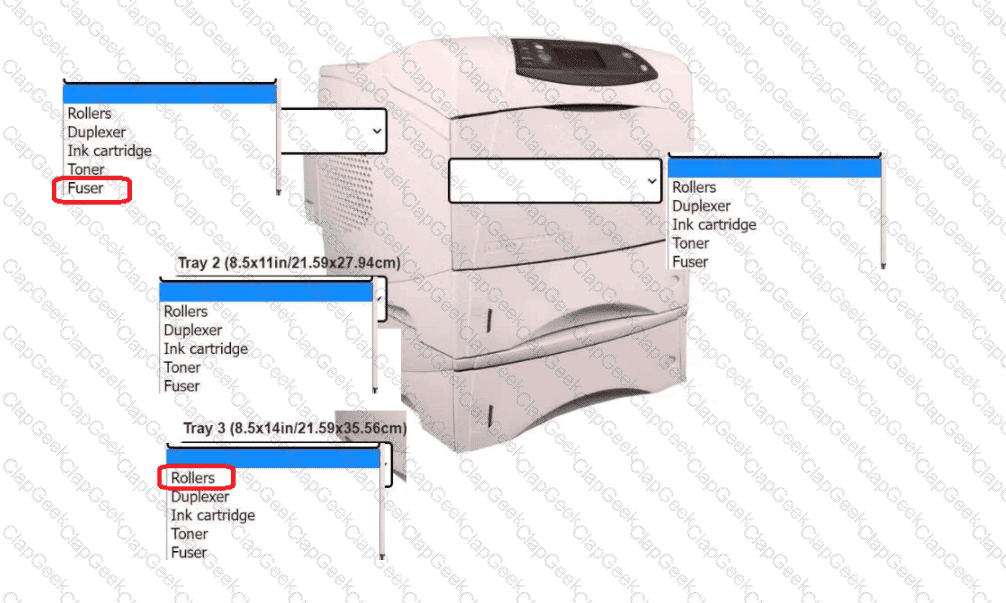 A printer with text boxes AI-generated content may be incorrect.
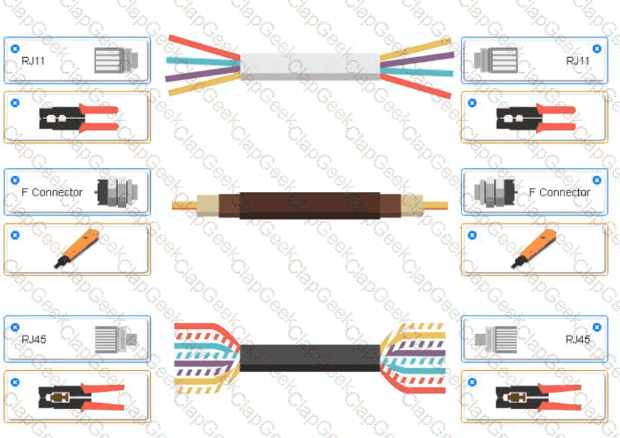 A group of wires with different colors AI-generated content may be incorrect.
 A screenshot of a computer AI-generated content may be incorrect.